Look for "Mendi app" in either Google PlayStore or the AppStore, or download the app from the links below:
iOS: Mendi App on App Store
Android: Mendi App on Google Play
Introduction & Overview
Mendi pairs an fNIRS headband with a mobile app to give you real-time neurofeedback training. This guide follows the app screen by screen so you’ll know exactly what to expect at each step, from first setup through customising your sessions. By the end, you’ll feel confident connecting your headband, configuring the session length and breathwork options, customising the training display and reviewing your progress.
Connecting Your Mendi Headband
When you first open the app, ensure your Bluetooth is turned on. The app will ask you to grant it Bluetooth/location permissions in order to search for nearby Mendi devices. Make sure you accept this dialogue box – if it doesn't appear, try reinstalling the app and restarting your phone immediately afterwards; the dialogue box asking for permissions will appear then. Once the device is connected, the app will display a message like “Mendi is connected!”
Once the device is connected you will see the device battery charge status in the top right corner of the Mendi app. If you still have trouble connecting your Mendi, make sure the headband is charged and within range, then try again. You can always reach out to our CS team as well at support@mendi.io.
Privacy and personal data
Please review our privacy policy and terms of service. Once you accept them, you will be able to access the app.
Selecting your key focus area.
Time to decide what you want to achieve through your Mendi training. You’ll now be asked to select a focus area that best reflects what you want to work on right now. Your selection helps Mendi tailor insights and check-ins to support your specific goals. You can change your focus area anytime in Settings.
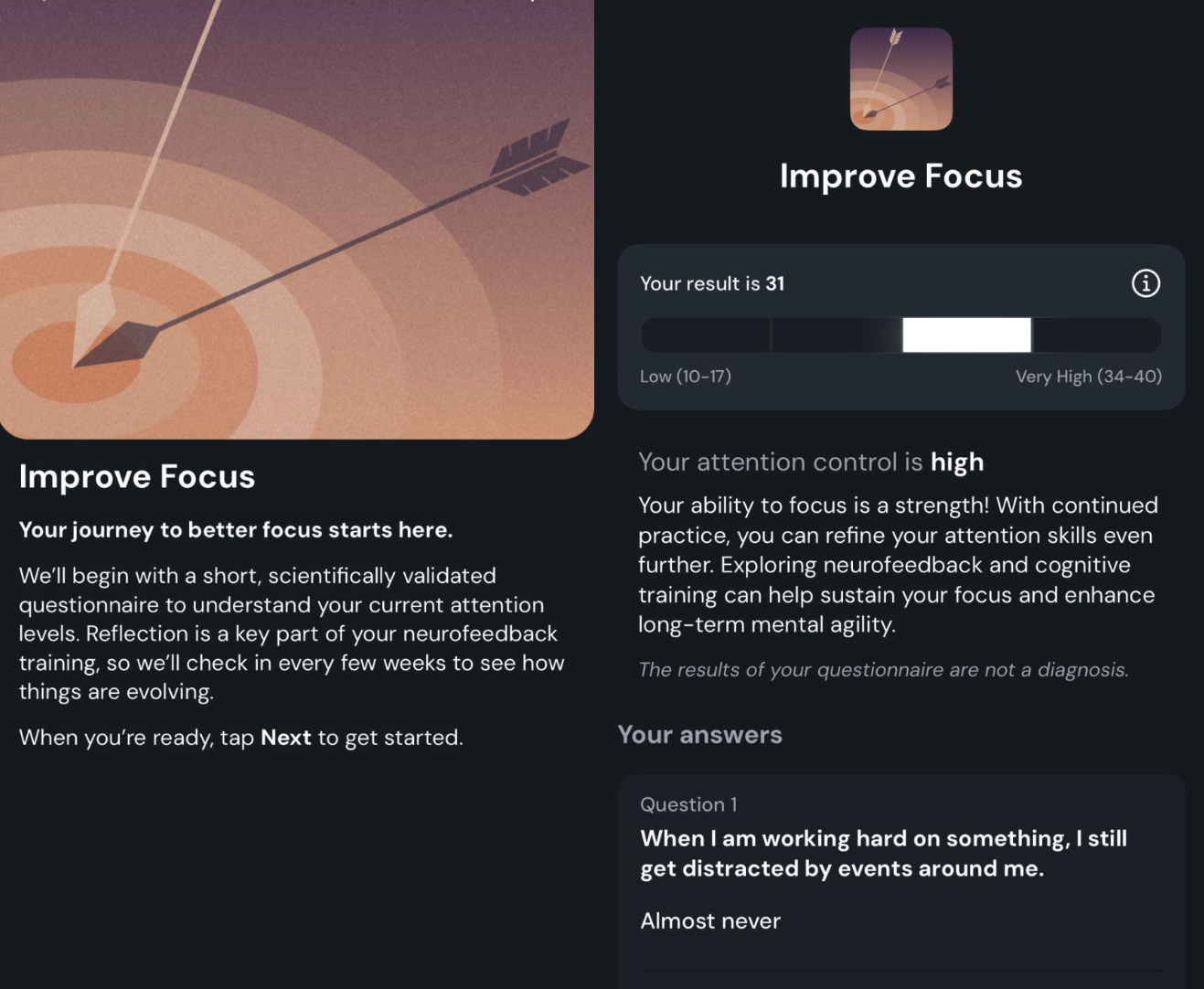
To better understand your current state, you’ll be asked to complete a short, scientifically validated questionnaire based on your selected goal. Each questionnaire takes around 2 minutes to complete. Your answers help Mendi determine a baseline so you can track your progress over time. These assessments are not medical diagnostics but tools to help you reflect on your mental well-being.
Depending on your chosen focus area, you’ll take one of the following: – Attention Control Scale (ACS) – assesses your ability to maintain and shift attention. – Perceived Stress Scale-10 (PSS-10) – measures how you perceive and manage stress in daily life. – Generalized Anxiety Disorder 7-item (GAD-7) – helps evaluate common symptoms of anxiety. – Patient Health Questionnaire-9 (PHQ-9) – screens for symptoms of low mood and emotional distress. – WHO-5 Well-Being Index – tracks overall mental well-being and quality of life.
Once you complete the questionnaire, you’ll receive a personalised result based on your responses. This gives you a clear starting point to revisit over time as you continue training with Mendi.
What Happens After?
Once you complete the questionnaire, you’ll receive a personalized result based on your responses. This gives you a clear starting point to revisit over time as you continue training with Mendi.
- You’ll be able to retake the same questionnaire every 1, 2, or 3 months, depending on your preference.
- These check-ins help you see measurable changes over time and understand how your brain training and lifestyle are supporting your mental well-being.
Consistency is key
Mendi will ask you to set reminders for training, consistent training is the key to long-term success with Mendi. Users who have trained 8 weeks consistently have seen noticeable changes in their goals.
The Explore tab
Once you're done with the initial setup (preferences/notifications/connecting the device), You'll arrive in the explore tab of the app, the explore tab is our curated knowledge base created specifically for Mendi users by neuroscientists, neurofeedback practitioners and meditators aimed at equipping you with the knowledge about how your brain functions and how to succeed with your Mendi training. This is a fantastic resource in ensuring that you are successful on your neurofeedback training journey.
At the bottom of the app you will find the navigation bar (navbar) here you may switch between the three key screens - the explore tab, the training tab and the profile tab.
The Profile tab (iOS & Android)
In the Profile tab, you’ll find the email address linked to your Mendi account displayed right below your account name. From this section, you can also review and update your account details, and adjust your training preferences, including: session duration, game appearance, and soundscapes.
Preparing for Your Session
Before starting a session, follow these guidelines to ensure accurate neurofeedback readings
- Choose a quiet environment with minimal distractions.
- Position the headband comfortably on your head with sensors above your eyebrows.
- Wear earbuds or headphones for a more immersive training experience.
- Avoid bright light shining directly into your eyes.
- Take a few deep breaths or use the app’s breathwork exercise to centre yourself.
- Establish a regular training schedule to build a consistent habit.
The Training tab
And finally, the Training tab.
It’s the middle button on the navigation bar. The place you’ll visit daily to start your Mendi training session. Once you tap the Start button (the circle), you’ll be taken to a screen showing your name and the session duration.
At the bottom, you’ll find the menu bar, where you can adjust everything from session length and in-game screen settings to audio preferences and breathwork options.
You can train as yourself or as a guest (if you’d like to let someone else try your Mendi). Guest sessions aren’t saved and won’t affect your baseline measurements.
Configuring Session Settings
In the session setup screen you can customise several parameters
- User mode: Choose You or Guest.
- Breathwork: Toggle on or off. Breathwork uses a guided “cyclic sighing” technique to calm your nervous system.
- Session length: Select 3, 5, 10, or 15 minutes. Longer sessions (10–15 min) are recommended for deeper training
- Soundscape: Pick your preferred audio background (e.g., ambient electronic neuro music) and adjust volume.
-
Star sound volume: Adjust the cue sound level when you earn points.
Make adjustments and press Start to launch the training. - Avatar style: Choose between animated shapes like Asteroid or Circle.
- Glow effect: Toggle on for a pulsing glow around your avatar.
- Avatar spin: Decide if the avatar should rotate as your focus increases.
-
Dynamic zoom (immersion): When enabled, the avatar zooms in and out based on your neurofeedback, increasing immersion.
Explore these options under Training Display Settings to find the look that motivates you most.
Breathwork and Mood-tracker
Enabling breathwork at the start of a session guides you through a short breathing exercise (cyclic sighing) before the neurofeedback begins. This lowers stress and primes your brain for training.
- You can adjust breathwork duration and sound independently from the session length.
- After setting your preferences for the training session, you’ll see the Mood Tracker screen. This feature helps you first acknowledge how you’re currently feeling, and over time, it allows you to understand which mood states correlate with your best sessions.
It’s a valuable tool when looking back at previous sessions, you can see how you felt on a particular day and how your mood influenced your performance.
If breathwork is enabled, it will begin immediately before your training session starts. Follow the on-screen instructions and keep your training goal in mind, whether it’s improving focus, reducing anxiety, or simply centering yourself, as you move through the breathing exercise.
In-Session Experience
After completing the breathwork session, your neurofeedback training will begin. You’ll first go through a brief calibration phase, during which your baseline level of oxygenated blood flow is measured. Once calibration is complete, the training game will start, you’ll see the ball respond to your brain activity in real time.
At the top of the screen you will see your in-game scores (Oxygenation, Control and Neural activity) - if you find these to be distracting you can tap the screen to make the scores disappear.
When you maintain focus, the ball will rise (or spin or glow, depending on your settings).
When your focus drifts, the ball will lower, reflecting a decrease in oxygenated blood flow to your prefrontal cortex (PFC).
When this happens, gently bring your attention back to your breath or to your session goal. For more tips on how to improve your in-game performance please see:
I can't seem to control the ball. Got any tips for me?
Viewing Results & Progress
After completing a session, the app summarises your performance:
- It shows your Mendi Score, duration trained, and feedback on improvement.
- You can click the score box (i.e. Building momentum) to view your score insights.
- Clicking the information button in the top right of the score box will show you what the Mendi score is and how it is calculated. You can use these insights to identify patterns in your focus and adjust your training routine.
Good luck!